WeMo MCP Server
Control WeMo smart home devices through AI assistants using natural language.
mcp-name: io.github.apiarya/wemo






Table of Contents
- Overview
- Prerequisites
- Quick Start
- Connect
- Configuration
- MCP Tools
- MCP Capabilities
- How It Works
- Feature Comparison
- Development
- Contributing
- License
- Acknowledgments
Overview
Seamlessly integrate WeMo smart home devices with AI assistants through the Model Context Protocol. Built on pywemo, this server enables natural language control of your WeMo devices with intelligent multi-phase discovery.
Example Usage
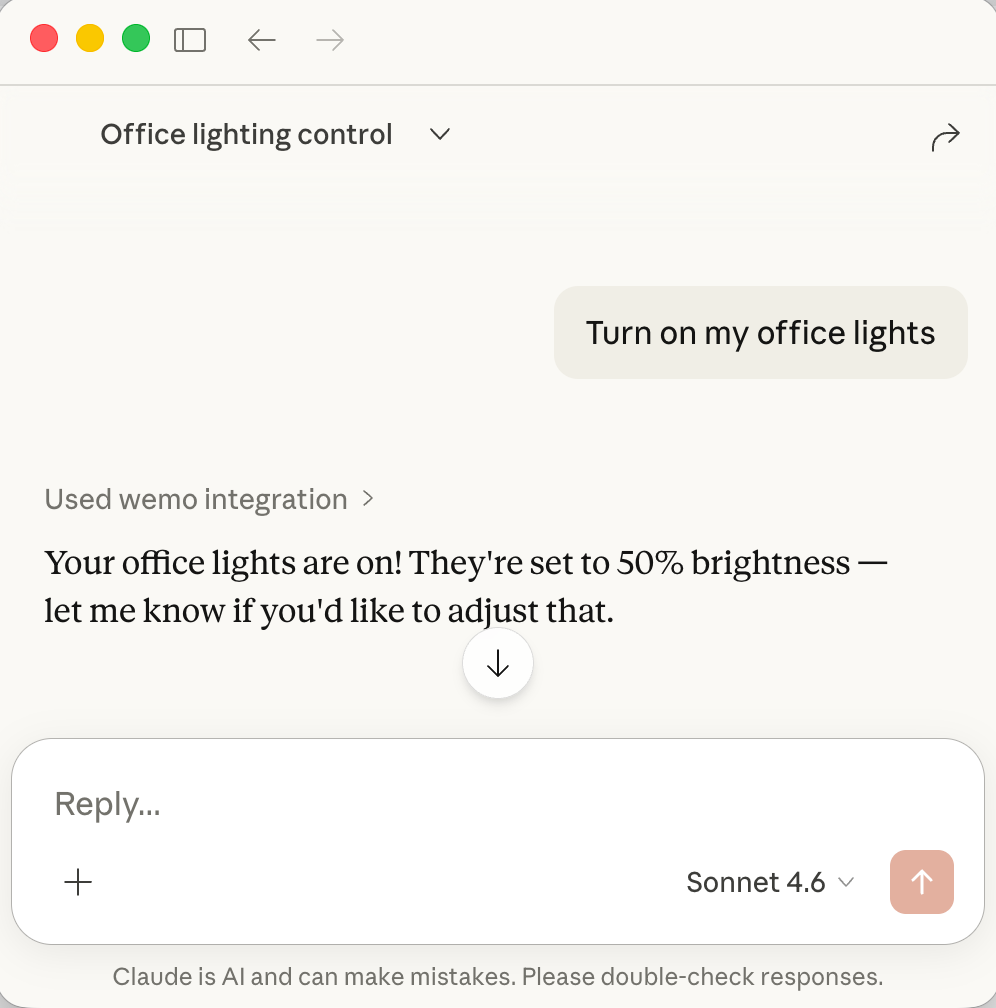
Control WeMo devices through AI assistants with natural language - just ask in plain English!
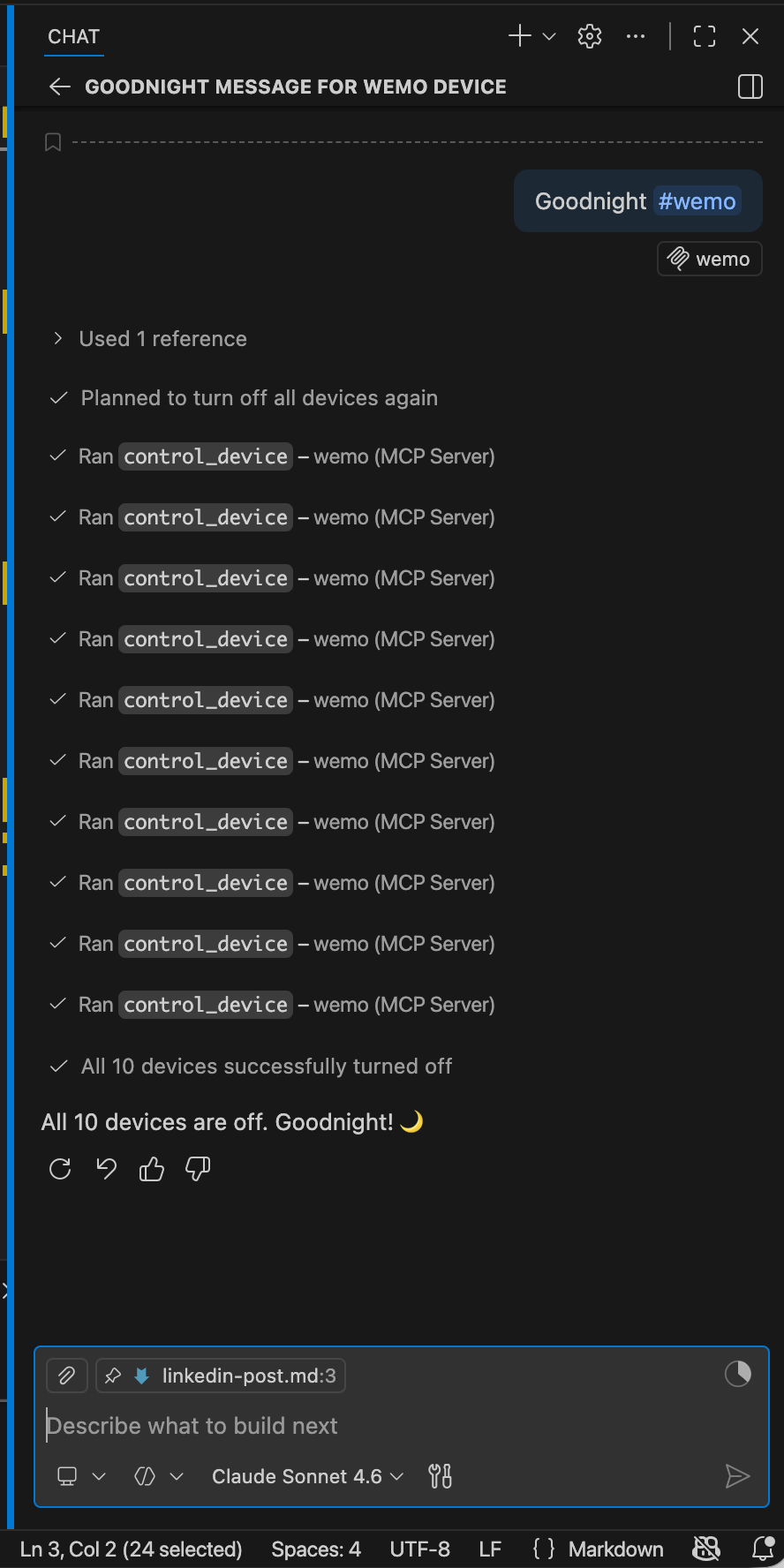
"Goodnight" — one command turns off every device in the house
Key Features
- 🔍 Smart Discovery - Multi-phase scanning (UPnP/SSDP + network ports) with 100% reliability
- ⚡ Fast Scanning - Parallel probes with 60 concurrent workers (~23-30s for full subnet)
- 🎛️ Full Control - On/off/toggle/brightness control for all device types
- ✏️ Device Management - Rename devices and extract HomeKit setup codes
- 📊 Real-time Status - Query device state and brightness
- 💾 Smart Caching - Persistent device cache with 1-hour TTL survives restarts
- 🔧 Configurable - YAML config files + environment variables for all settings
- 🔄 Auto-Retry - Automatic retry with exponential backoff for network errors
- 🛡️ Error Handling - Detailed error messages with actionable suggestions
- 🔌 Universal - Works with any MCP client (Claude, VS Code, Cursor, etc.)
- 📡 MCP Resources - Live device state via
devices://anddevice://{id}URIs - 💬 MCP Prompts - Built-in guided prompts: discover, status report, scene control, troubleshoot
- 🗣️ MCP Elicitations - Interactive clarification when subnet or device name is ambiguous
Prerequisites
All configurations use uvx (from the uv Python package manager) to run the server. Install uv first:
# macOS/Linux
curl -LsSf https://astral.sh/uv/install.sh | sh

# macOS with Homebrew
brew install uv

# Windows
powershell -c "irm https://astral.sh/uv/install.ps1 | iex"After installation, restart your terminal and verify:
uvx --versionQuick Start
Get started in seconds with Claude Code CLI:
claude mcp add wemo -- uvx wemo-mcp-serverConnect
One-Click Installation
Click your client to install instantly:
| Client | Install |
|---|---|
| Claude Desktop |  |
| Claude Code CLI | Run: claude mcp add wemo -- uvx wemo-mcp-server |
| VS Code |  |
| Cursor |  |
| Cline | Manual config (VS Code extension) |
| Windsurf | Manual config |
| Zed | Manual config |
| Continue | Manual config (VS Code extension) |
Manual Configuration
Claude Desktop
Edit ~/Library/Application Support/Claude/claude_desktop_config.json:
{
  "mcpServers": {
    "wemo": {
      "command": "uvx",
      "args": ["wemo-mcp-server"],
      "env": {
        "WEMO_MCP_DEFAULT_SUBNET": "192.168.1.0/24"
      }
    }
  }
}Restart Claude Desktop after saving.
VS Code
Edit ~/.vscode/mcp.json:
{
  "servers": {
    "wemo": {
      "type": "stdio",
      "command": "uvx",
      "args": ["wemo-mcp-server"],
      "env": {
        "WEMO_MCP_DEFAULT_SUBNET": "192.168.1.0/24"
      }
    }
  }
}Reload VS Code after saving.
Cursor
Edit ~/.cursor/mcp.json:
{
  "servers": {
    "wemo": {
      "type": "stdio",
      "command": "uvx",
      "args": ["wemo-mcp-server"]
    }
  }
}Restart Cursor after saving.
Cline
Cline is a VS Code extension. Add to VS Code's settings.json:
{
  "mcp.servers": {
    "wemo": {
      "command": "uvx",
      "args": ["wemo-mcp-server"]
    }
  }
}Reload VS Code after saving.
Windsurf
Edit ~/.windsurf/mcp.json:
{
  "mcpServers": {
    "wemo": {
      "command": "uvx",
      "args": ["wemo-mcp-server"]
    }
  }
}Restart Windsurf after saving.
Zed
Edit ~/.config/zed/settings.json:
{
  "context_servers": {
    "wemo": {
      "command": "uvx",
      "args": ["wemo-mcp-server"]
    }
  }
}Restart Zed after saving.
Continue
Continue is a VS Code extension. Edit ~/.continue/config.json:
{
  "mcpServers": [
    {
      "name": "wemo",
      "command": "uvx",
      "args": ["wemo-mcp-server"]
    }
  ]
}Reload VS Code after saving.
Configuration
The WeMo MCP Server supports flexible configuration through YAML files and environment variables.
Quick Configuration
The most important setting is your network subnet — the server defaults to 192.168.1.0/24 but your devices may be on a different subnet (e.g. 192.168.86.0/24).
Set it directly in your MCP client config using env:
"env": {
  "WEMO_MCP_DEFAULT_SUBNET": "192.168.86.0/24"
}Or export it before starting the server:
Using Environment Variables (simplest):
export WEMO_MCP_DEFAULT_SUBNET="192.168.1.0/24"
export WEMO_MCP_CACHE_TTL=7200
export WEMO_MCP_LOG_LEVEL=DEBUGUsing YAML Config File:
# Copy example config and customize
cp config.example.yaml config.yaml
# Edit config.yaml with your settingsConfiguration Options
| Setting | Environment Variable | Default | Description |
|---|---|---|---|
| Network | |||
| Default subnet | WEMO_MCP_DEFAULT_SUBNET | 192.168.1.0/24 | Network to scan for devices |
| Scan timeout | WEMO_MCP_SCAN_TIMEOUT | 0.6 | Port probe timeout (seconds) |
| Max workers | WEMO_MCP_MAX_WORKERS | 60 | Concurrent scanning threads |
| Cache | |||
| Enable cache | WEMO_MCP_CACHE_ENABLED | true | Persistent device caching |
| Cache file | WEMO_MCP_CACHE_FILE | ~/.wemo_mcp_cache.json | Cache file location |
| Cache TTL | WEMO_MCP_CACHE_TTL | 3600 | Cache lifetime (seconds) |
| Logging | |||
| Log level | WEMO_MCP_LOG_LEVEL | INFO | DEBUG, INFO, WARNING, ERROR |
Example Configurations
Large Network (multiple subnets):
export WEMO_MCP_DEFAULT_SUBNET="10.0.0.0/16"
export WEMO_MCP_SCAN_TIMEOUT=1.0
export WEMO_MCP_MAX_WORKERS=100Debug Mode:
export WEMO_MCP_LOG_LEVEL=DEBUG
export WEMO_MCP_CACHE_TTL=300 # 5 minutesDisable Caching:
export WEMO_MCP_CACHE_ENABLED=falseSee config.example.yaml and .env.example for complete configuration templates.
For detailed configuration guide, see CONFIGURATION.md.
MCP Tools
1. scan_network
Discover WeMo devices on your network using intelligent multi-phase scanning.
Example Prompts:
- "Scan for WeMo devices on my network"
- "Find all WeMo devices"
- "Discover devices on 192.168.1.0/24"
Example Response:
Found 12 WeMo devices in 23.5 seconds:

1. Office Light (Dimmer) - 192.168.1.100 - OFF
2. Living Room (Switch) - 192.168.1.101 - ON
3. Bedroom Lamp (Dimmer) - 192.168.1.102 - OFF
...2. list_devices
List all devices cached from previous scans.
Example Prompts:
- "List all my WeMo devices"
- "Show me all devices"
- "What devices do you know about?"
Example Response:
12 devices in cache:

- Office Light (Dimmer) at 192.168.1.100
- Living Room (Switch) at 192.168.1.101
- Bedroom Lamp (Dimmer) at 192.168.1.102
...3. get_device_status
Get current state and information for a specific device.
Example Prompts:
- "Is the office light on?"
- "What's the status of the bedroom lamp?"
- "Check the living room switch"
- "What's the brightness of office light?"
Example Response:
Office Light (Dimmer):
- State: OFF
- Brightness: 75%
- IP: 192.168.1.100
- Model: DimmerLongPress4. control_device
Control a WeMo device (on/off/toggle/brightness).
Example Prompts:
- "Turn on the office light"
- "Turn off the living room"
- "Toggle the bedroom lamp"
- "Set office light to 75%"
- "Dim the bedroom lamp to 50%"
Example Response:
✓ Office Light turned ON
  Brightness set to 75%
Current state: ON5. rename_device
Rename a WeMo device (change its friendly name).
Example Prompts:
- "Rename Office Dimmer to Office Light"
- "Change the name of the bedroom device to Bedroom Lamp"
- "Call the living room switch 'Main Light'"
Example Response:
✓ Device renamed successfully
  'Office Dimmer' → 'Office Light'
  IP: 192.168.1.100

The new name will appear in the WeMo app and all control interfaces.6. get_homekit_code
Get the HomeKit setup code for a WeMo device.
Example Prompts:
- "Get the HomeKit code for Office Light"
- "What's the HomeKit setup code for the bedroom lamp?"
- "Show me the HomeKit cod
…