<img src="https://tomba.io/logo.svg" alt="Tomba" width="25"/> Tomba.io MCP Server
A Model Context Protocol (MCP) server for integrating with the Tomba.io API. This server provides comprehensive email discovery, verification, and enrichment capabilities through a standardized MCP interface.
Features
Tools (12 available)
- Domain Search: Find all email addresses associated with a domain
- Email Finder: Generate likely email addresses from names and domains
- Email Verifier: Verify email deliverability and check database presence
- Email Enrichment: Enrich emails with additional contact data
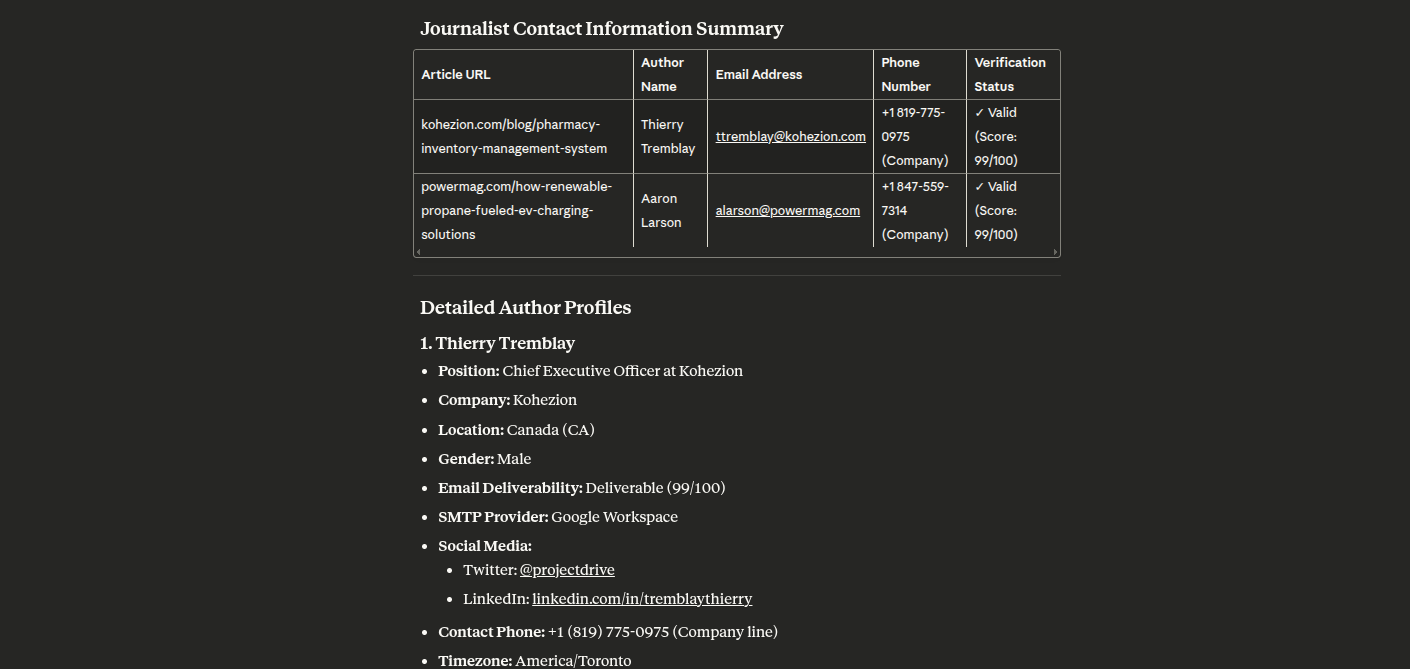
- Author Finder: Discover email addresses of article authors
- LinkedIn Finder: Find emails from LinkedIn profile URLs
- Phone Finder: Search phone numbers by email, domain, or LinkedIn
- Phone Validator: Validate phone numbers and check carrier info
- Email Count: Get total email counts for domains
- Similar Finder: Find similar domains based on a target domain
- Technology Finder: Discover technology stacks used by websites
- Companies Search: Search for companies using natural language queries with advanced filters
Resources (7 available)
tomba://api/status- API status and account infotomba://domain/{domain}- Domain informationtomba://email/{email}- Email informationtomba://similar/{domain}- Similar domains analysistomba://technology/{domain}- Technology stack informationtomba://docs/api- API documentationtomba://docs/tools- Tools documentation
Prompts (16 pre-built workflows)
- find_contact - Find complete contact info for a person
- verify_email_list - Batch verify email addresses
- research_company - Research company contacts and structure
- enrich_lead - Enrich a lead with all available data
- find_journalists - Find journalist contacts from articles
- finder_phone - Find phone numbers for contacts
- validate_phone - Validate a phone number
- competitor_analysis - Analyze competitors using similar domains and technology
- technology_audit - Comprehensive technology audit of a website
- domain_insights - Get comprehensive insights about a domain including email count and technology
- bulk_domain_research - Research multiple domains for email counts and basic information
- find_target_companies - Find companies with advanced filters (size, type, revenue, industry)
- market_research - Research companies in a market segment with comprehensive filtering
- lead_generation - Generate leads by finding companies and their contacts
- prospect_enrichment - Enrich company prospects with comprehensive data
- industry_analysis - Analyze companies within an industry with detailed segmentation
Filter Options for Company Search Prompts
| Filter | Available Values |
|---|---|
| Size | 1-10 (Micro), 11-50 (Small), 51-250 (Mid-sized), 251-1K (Medium-large), 1K-5K (Large), 5K-10K (Very large), 10K-50K (Enterprise), 50K-100K (Massive), 100K+ (Global) |
| Type | education, government, nonprofit, private, public, personal |
| Revenue | $0-$1M, $1M-$10M, $10M-$50M, $50M-$100M, $100M-$250M, $250M-$500M, $500M-$1B, $1B-$10B, $10B+ |
| Industry | Based on LinkedIn Industry Codes V2 (140+ industries including Computer Software, Financial Services, Hospital & Health Care, etc.) |
Transport Options
- stdio - Standard input/output (default, for Claude Desktop)
- http - HTTP server with REST endpoints
Installation
Prerequisites
- Node.js 18 or higher
- npm or yarn
- Tomba API account (Sign up here)
Screenshots
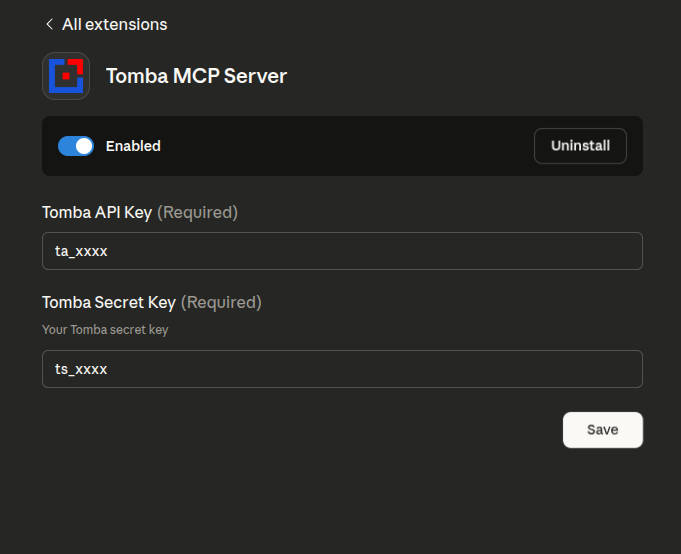
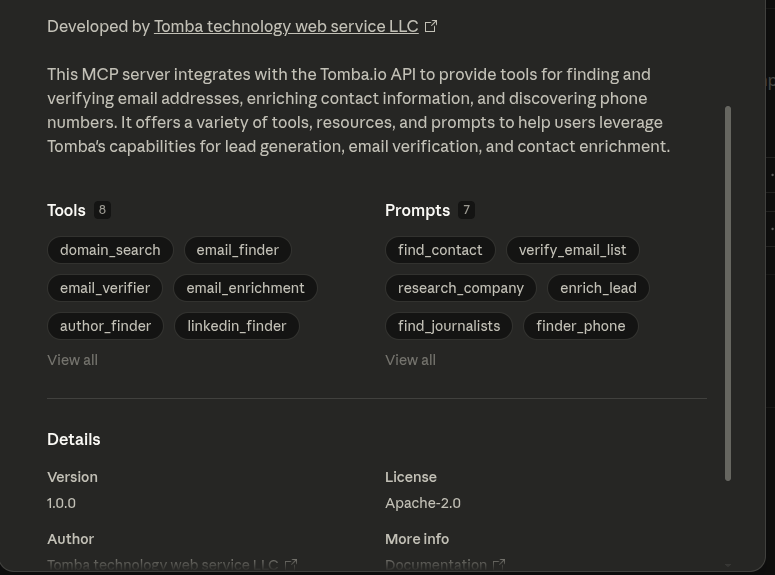
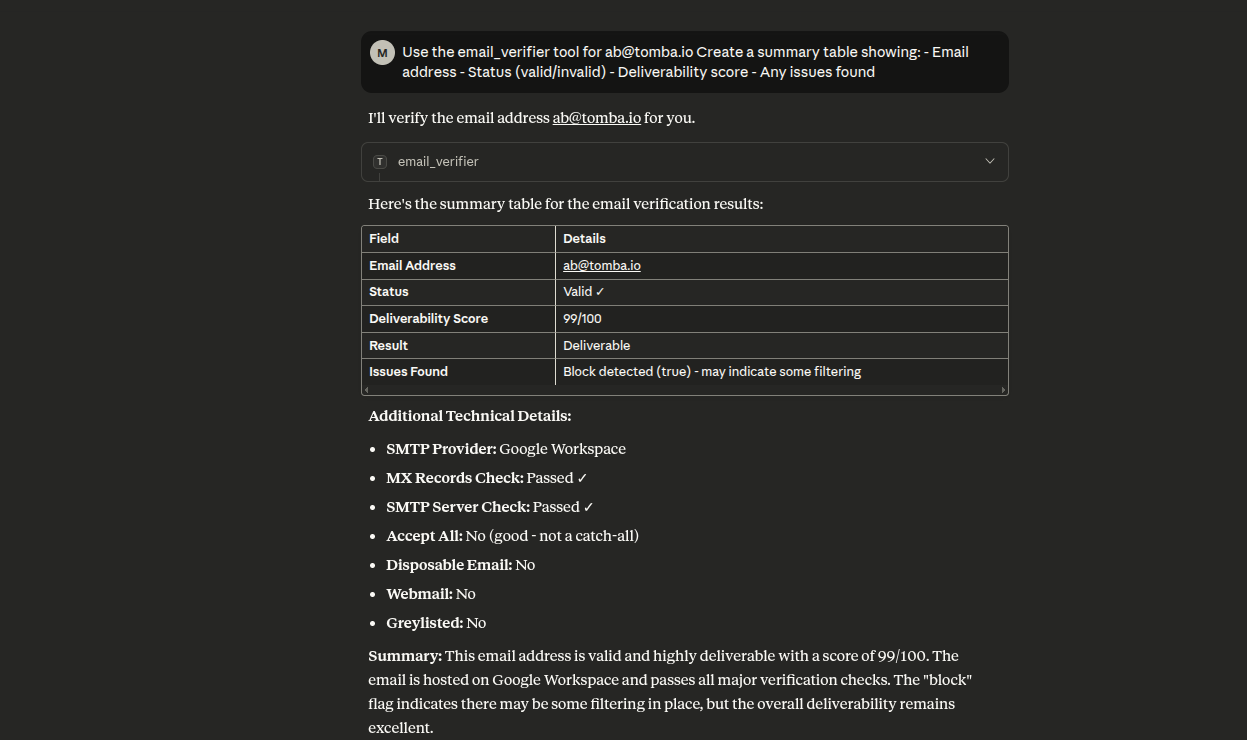
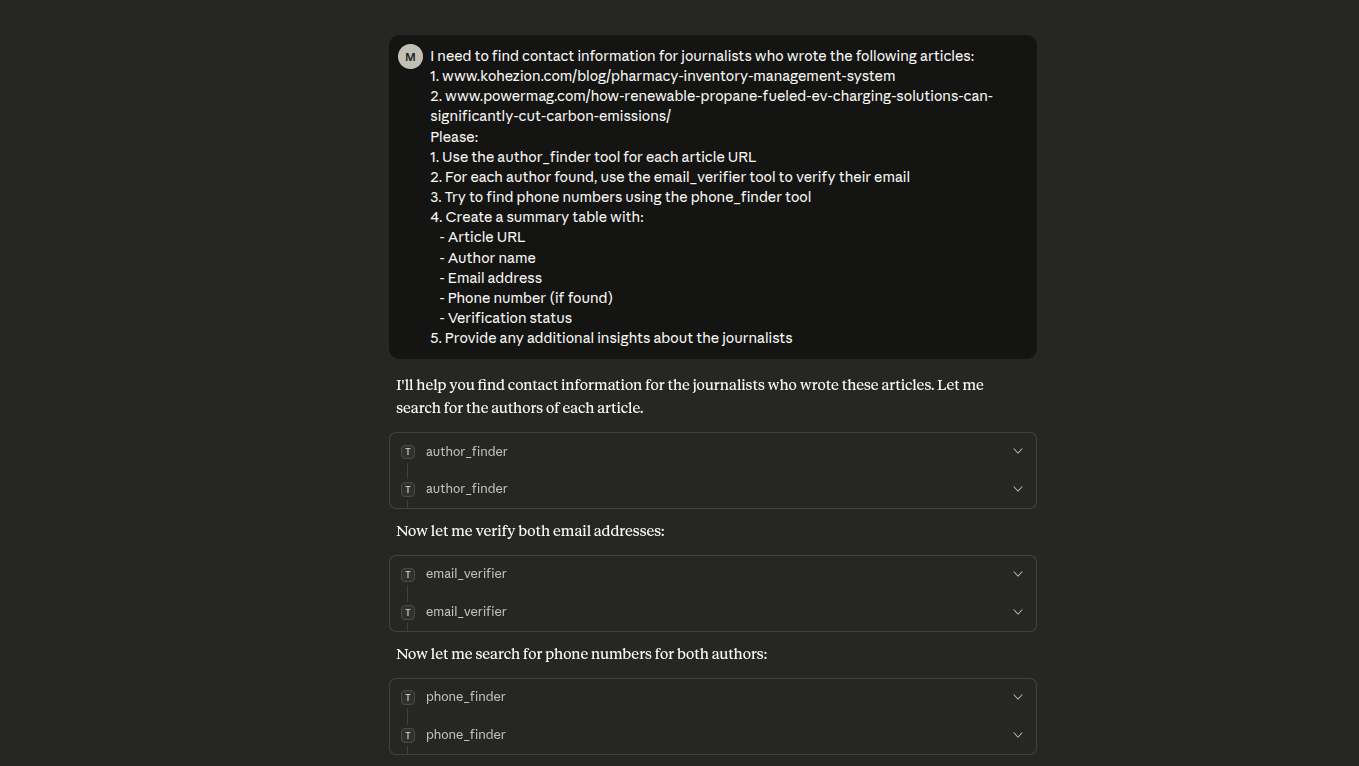
Option 1: Install via NPX (Recommended)
The easiest way to use the Tomba MCP server is via npx, which doesn't require cloning the repository:
macOS/Linux
Add to your claude_desktop_config.json (~/Library/Application Support/Claude/claude_desktop_config.json):
{
    "mcpServers": {
        "tomba": {
            "command": "npx",
            "args": ["-y", "tomba-mcp-server"],
            "env": {
                "TOMBA_API_KEY": "your-api-key-here",
                "TOMBA_SECRET_KEY": "your-secret-key-here"
            }
        }
    }
}Windows
Add to your claude_desktop_config.json (%APPDATA%\Claude\claude_desktop_config.json):
{
    "mcpServers": {
        "tomba": {
            "command": "npx",
            "args": ["-y", "tomba-mcp-server"],
            "env": {
                "TOMBA_API_KEY": "your-api-key-here",
                "TOMBA_SECRET_KEY": "your-secret-key-here"
            }
        }
    }
}Note: The -y flag automatically accepts the installation prompt, and npx will always fetch the latest version.
Option 2: Install from Source
If you want to modify the server or contribute to development:
# Clone the repository
git clone https://github.com/tomba-io/tomba-mcp-server.git
cd tomba-mcp-server

# Install dependencies
yarn install

# Build the project
yarn buildConfiguration
OpenClaw Skill
This repository now includes a workspace-local OpenClaw skill at skills/tomba-contact-intelligence/SKILL.md.
The skill is designed to help OpenClaw choose the right Tomba MCP tools for contact discovery, company research, email verification, phone lookup, and prospect enrichment workflows.
To use it:
- Open this repository as your OpenClaw workspace, or copy the
skills/tomba-contact-intelligencedirectory into your OpenClaw skills directory. - Ensure the Tomba MCP server is configured and available to OpenClaw.
- Start a new OpenClaw session so the skill is loaded.
Example prompts:
- "Find the best contact for partnerships at stripe.com and verify the email before you return it."
- "Research fintech companies in Germany, then identify likely sales contacts for the top matches."
- "Enrich this prospect with email, phone, company technology, and similar competitors: jane@acme.com"
Claude Desktop Setup
To use this server with Claude Desktop, add the configuration to your claude_desktop_config.json file.
Using NPX (Recommended)
This method automatically uses the latest published version:
macOS/Linux (~/Library/Application Support/Claude/claude_desktop_config.json):
{
    "mcpServers": {
        "tomba": {
            "command": "npx",
            "args": ["-y", "tomba-mcp-server"],
            "env": {
                "TOMBA_API_KEY": "your-api-key-here",
                "TOMBA_SECRET_KEY": "your-secret-key-here"
            }
        }
    }
}Windows (%APPDATA%\Claude\claude_desktop_config.json):
{
    "mcpServers": {
        "tomba": {
            "command": "npx",
            "args": ["-y", "tomba-mcp-server"],
            "env": {
                "TOMBA_API_KEY": "your-api-key-here",
                "TOMBA_SECRET_KEY": "your-secret-key-here"
            }
        }
    }
}Using Local Installation
If you've built from source, use the absolute path to your installation:
macOS/Linux:
{
    "mcpServers": {
        "tomba": {
            "command": "node",
            "args": ["/ABSOLUTE/PATH/TO/tomba-mcp-server/server/index.js"],
            "env": {
                "TOMBA_API_KEY": "your-api-key-here",
                "TOMBA_SECRET_KEY": "your-secret-key-here"
            }
        }
    }
}Windows:
{
    "mcpServers": {
        "tomba": {
            "command": "node",
            "args": [
                "C:\\ABSOLUTE\\PATH\\TO\\tomba-mcp-server\\server\\index.js"
            ],
            "env": {
                "TOMBA_API_KEY": "your-api-key-here",
                "TOMBA_SECRET_KEY": "your-secret-key-here"
            }
        }
    }
}Important Notes:
- Replace
your-api-key-hereandyour-secret-key-herewith your actual Tomba API credentials - For local installation, replace
/ABSOLUTE/PATH/TO/tomba-mcp-serverwith the full path to your installation directory - Restart Claude Desktop after updating the configuration
Getting Tomba API Credentials
- Visit https://tomba.io
- Sign up for an account or log in
- Navigate to your dashboard
- Go to API settings
- Copy your API Key and Secret Key
Alternative: Using HTTP Transport
For HTTP transport with npx:
{
    "mcpServers": {
        "tomba": {
            "command": "npx",
            "args": [
                "-y",
                "tomba-mcp-server",
                "--transport",
                "http",
                "--port",
                "3000"
            ],
            "env": {
                "TOMBA_API_KEY": "your-api-key-here",
                "TOMBA_SECRET_KEY": "your-secret-key-here"
            }
        }
    }
}For HTTP transport with local installation:
{
    "mcpServers": {
        "tomba": {
            "command": "node",
            "args": [
                "/ABSOLUTE/PATH/TO/tomba-mcp-server/server/index.js",
                "--transport",
                "http",
                "--port",
                "3000"
            ],
            "env": {
                "TOMBA_API_KEY": "your-api-key-here",
                "TOMBA_SECRET_KEY": "your-secret-key-here"
            }
        }
    }
}Usage
Command-line Options
Usage: tomba-mcp-server [options]

Options:
  --transport <type>    Transport type: 'stdio' or 'http' (default: stdio)
  --port <number>       Port number for HTTP transport (default: 3000)
  --help                Show help message

Environment Variables:
  TOMBA_API_KEY         Your Tomba API key (required)
  TOMBA_SECRET_KEY      Your Tomba secret key (required)

Examples:
  # Run with stdio transport (default)
  node server/index.js

  # Run with HTTP transport on default port (3000)
  node server/index.js --transport http

  # Run with HTTP transport on custom port
node server/index.js --transport http --port 8080Standalone HTTP Server
You can also run the server as a standalone HTTP service:
export TOMBA_API_KEY="your-api-key"
export TOMBA_SECRET_KEY="your-secret-key"
node server/index.js --transport http --port 3000HTTP API Endpoints
- POST /mcp - Send JSON-RPC requests
- GET /mcp - Server-Sent Events for notifications (requires X-Session-Id header)
- DELETE /mcp - Terminate a session (requires X-Session-Id header)
- GET /health - Health check endpoint
- GET /sessions - List active sessions (requires authentication)
Example HTTP Request
curl -X POST http://localhost:3000/mcp \
  -H "Content-Type: application/json" \
  -d '{
    "jsonrpc": "2.0",
    "method": "tools/call",
    "params": {


…