🚀 ZoomEye MCP Server
A Model Context Protocol (MCP) server that provides network asset information based on query conditions. This server allows Large Language Models (LLMs) to obtain network asset information by querying ZoomEye using dorks and other search parameters.
🔔 Announcement
🎉 We are excited to announce the official open-source release of ZoomEye MCP Server — a powerful Model Context Protocol (MCP) server that brings real-time cyber asset intelligence to AI assistants and development environments.
🚀 Free Trial: 7-Day FREE Access to ZoomEye MCP! Experience ZoomEye MCP — the AI-powered cyberspace asset search engine — absolutely free for 7 days!
🔍 Search global internet assets, track real-time changes, and unlock AI-driven insights — all in one place.
👉 How to claim:
- Follow us on Twitter: @zoomeye_team
- DM us "MCP" and your MCP setup screenshot
- Get instant access to your 7-day membership
🎁 Limited-time free trial — explore the power of AI asset search today!
💡 Provide insightful feedback that gets officially adopted, and you'll unlock even more rewards!
🔧 Fully compatible with leading MCP environments:
- Claude Desktop
- Cursor
- Windsurf
- Cline
- Continue
- Zed
- Cherry Studio
- Chatbox
🔗 Explore ZoomEye MCP Server on:
- GitHub: zoomeye-ai/mcp_zoomeye
- MCP.so: mcp.so/server/mcp_zoomeye
- Cursor Directory: cursor.directory/mcp/zoomeye
- Pulse MCP: pulsemcp.com/servers/zoomeye
- Glama MCP: glama.ai/mcp/servers
We welcome everyone to use, explore, and contribute!
🔑 How can I get a ZoomEye API key?
To use this MCP server, you’ll need a ZoomEye API key.
-
Go to https://www.zoomeye.ai
-
Register or log in
-
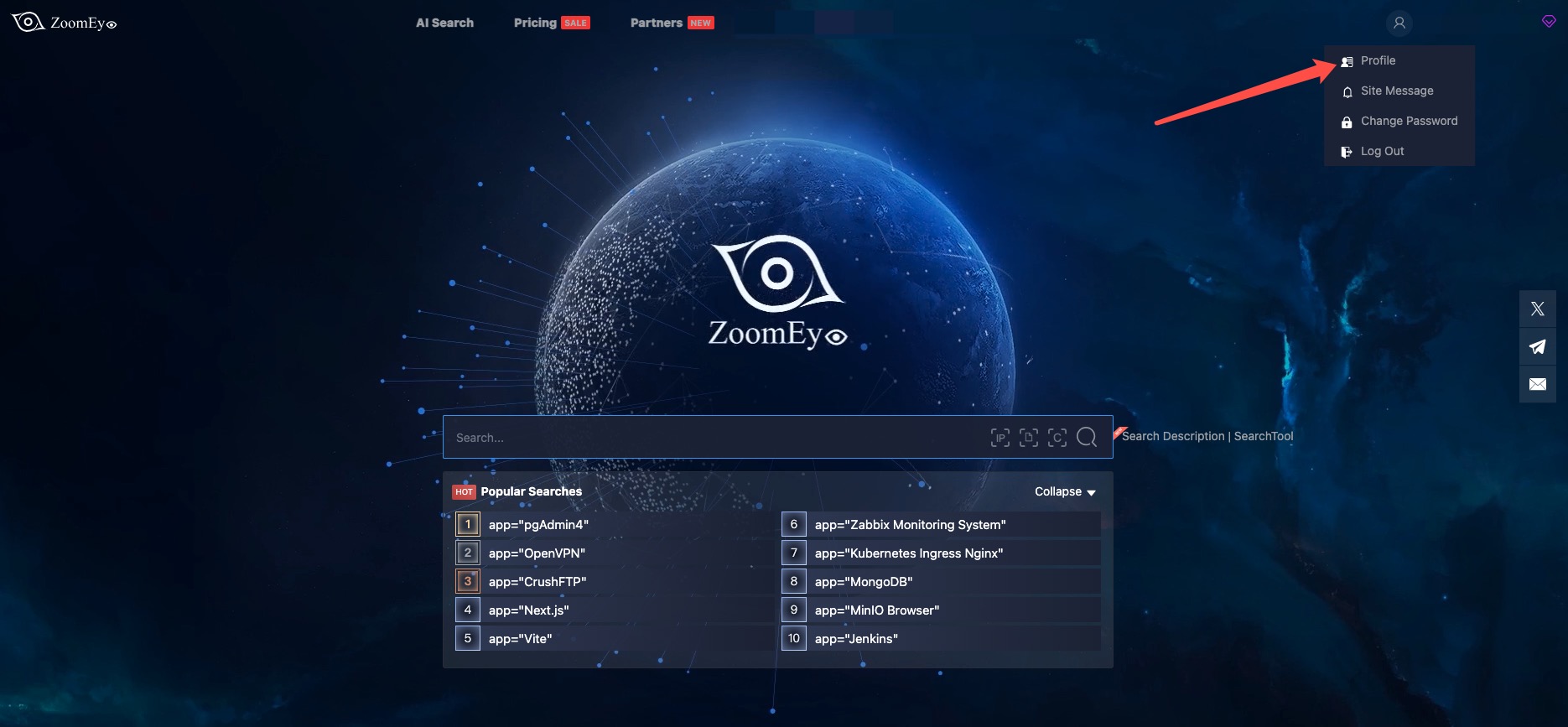
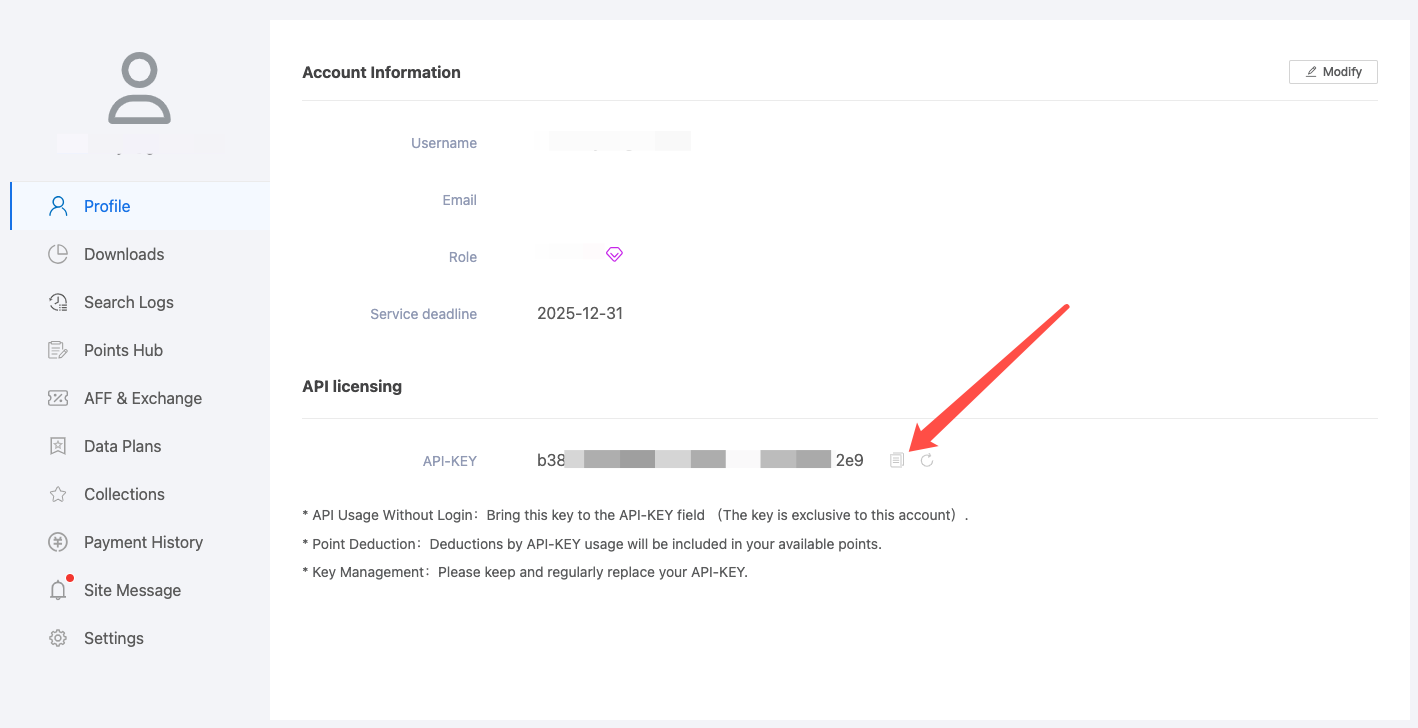
Click your avatar → Profile
-
Copy your API-KEY
-
Set the environment variable:
export ZOOMEYE_API_KEY="your_api_key_here"
Features
- Query ZoomEye for network asset information using dorks
- Caching mechanism to improve performance and reduce API calls
- Automatic retry mechanism for failed API requests
- Comprehensive error handling and logging
Available Tools
zoomeye_search- Get network asset information based on query conditions.- Required parameters:
qbase64(string): Base64 encoded query string for ZoomEye search
- Optional parameters:
page(integer): View asset page number, default is 1pagesize(integer): Number of records per page, default is 10, maximum is 1000fields(string): The fields to return, separated by commassub_type(string): Data type, supports v4, v6, and web. Default is v4facets(string): Statistical items, separated by commas if there are multipleignore_cache(boolean): Whether to ignore the cache
- Required parameters:
Usage Guide
Basic Usage
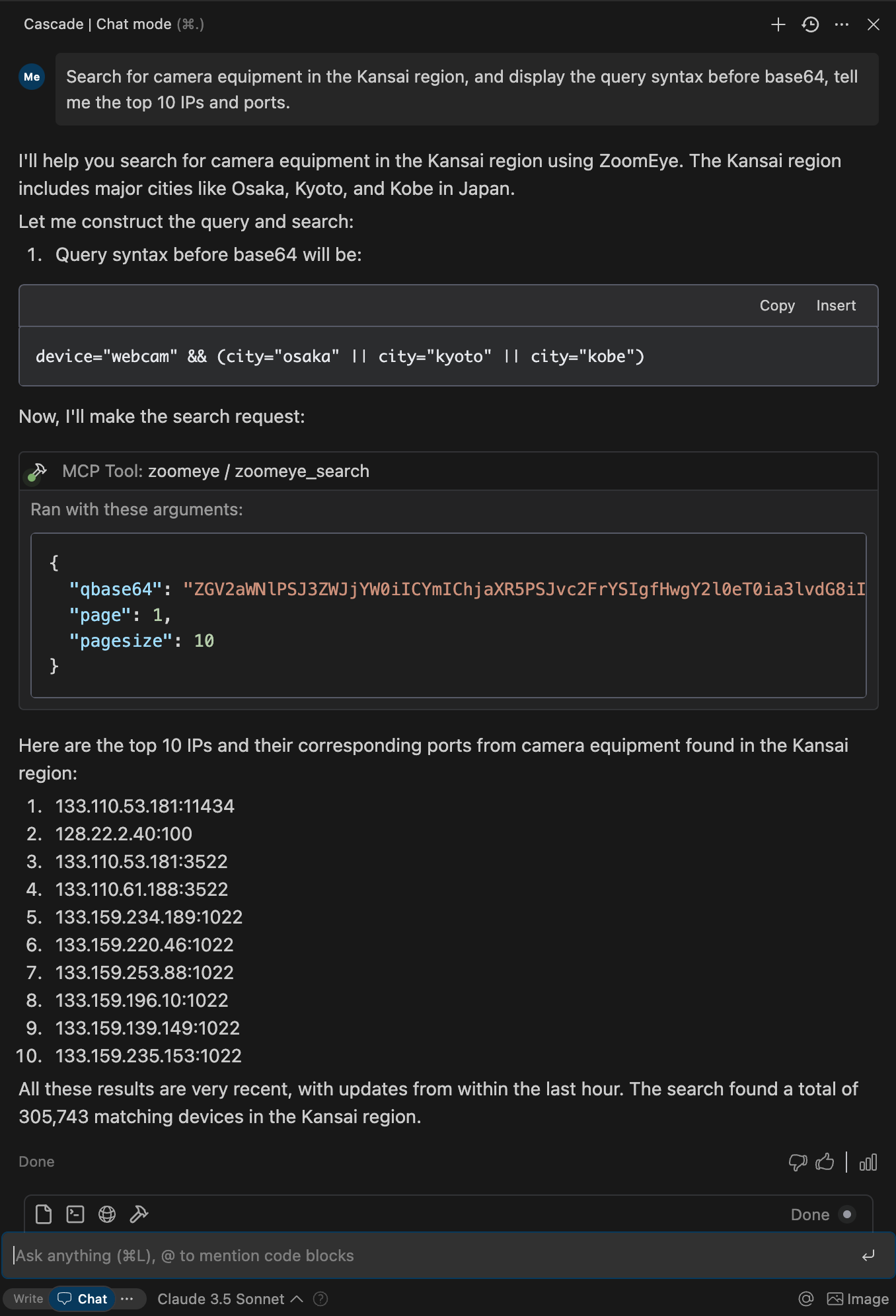
Once the server is running, you can interact with it through your AI assistant or development environment. Here's how to use it:
- Start the server using one of the installation methods above
- Configure your AI assistant (Claude Desktop, Cursor, Windsurf, Cline, Continue, Zed, etc.) to use the server
- Query network information using natural language
Search Syntax Guide
- Search Scope covers devices (IPv4, IPv6) and websites (domains).
- When entering a search string, the system will match keywords in "global" mode, including content from various protocols such as HTTP, SSH, FTP, etc. (e.g., HTTP/HTTPS protocol headers, body, SSL, title, and other protocol banners).
- Search strings are case-insensitive and will be segmented for matching (the search results page provides a " segmentation" test feature). When using == for search, it enforces exact case-sensitive matching with strict syntax.
- Please use quotes for search strings (e.g., "Cisco System" or 'Cisco System'). If the search string contains quotes, use the escape character, e.g.,"a"b". If the search string contains parentheses, use the escape character, e.g., portinfo().
You can see more detailed search syntax rules in prompts.py.
For more information on the ZoomEye Search API, refer to the ZoomEye API v2 documentation.
Getting Started
Prerequisites
-
ZoomEye API Key
- Register for an account at ZoomEye
- Obtain your API key from your account settings
- The API key will be used to authenticate your requests to the ZoomEye API
-
Python Environment
- Python 3.10 or higher is required
- Alternatively, you can use Docker to run the server without installing Python
Installation
Using PIP
Alternatively, you can install mcp-server-zoomeye via pip:
pip install mcp-server-zoomeyeAfter installation, you can run it as a script using the following command:
python -m mcp_server_zoomeyeUsing Docker
You can also run the ZoomEye MCP server using Docker:
Pull from Docker Hub
# Pull the latest image
docker pull zoomeyeteam/mcp-server-zoomeye:latest

# Run the container with your API key
docker run -i --rm -e ZOOMEYE_API_KEY=your_api_key_here zoomeyeteam/mcp-server-zoomeye:latestNote: We provide multi-architecture Docker images that support
linux/amd64andlinux/arm64platforms and can run on Intel/AMD and ARM (such as Apple Silicon) processors.
Build from Source
Alternatively, you can build the Docker image from source:
# Clone the repository
git clone https://github.com/zoomeye-ai/mcp_zoomeye.git
cd mcp_zoomeye

# Build the Docker image
docker build -t zoomeyeteam/mcp-server-zoomeye:local .

# Run the container
docker run -i --rm -e ZOOMEYE_API_KEY=your_api_key_here zoomeyeteam/mcp-server-zoomeye:localUsing uv
uv is a fast Python package installer and resolver written in Rust. It's a modern alternative to pip that offers significant performance improvements.
Installation of uv
# Install uv using curl (macOS/Linux)
curl -LsSf https://astral.sh/uv/install.sh | sh

# Or using PowerShell (Windows)
irm https://astral.sh/uv/install.ps1 | iex

# Or using Homebrew (macOS)
brew install uvUsing uvx to run mcp-server-zoomeye
No specific installation is required when using uvx, which allows you to run Python packages directly:
Installing with uv
Alternatively, you can install the package using uv:
# Install in the current environment
uv pip install mcp-server-zoomeye

# Or create and install in a new virtual environment
uv venv
uv pip install mcp-server-zoomeyeConfiguration
Environment Variables
The ZoomEye MCP server requires the following environment variable:
ZOOMEYE_API_KEY: Your ZoomEye API key for authentication
You can set this environment variable in several ways:
-
Export in your shell session:
export ZOOMEYE_API_KEY="your_api_key_here" -
Pass directly when running the container (for Docker):
docker run -i --rm -e ZOOMEYE_API_KEY=your_api_key_here zoomeyeteam/mcp-server-zoomeye:latest
Configure Claude.app
Add the following in Claude settings:
<details> <summary>Using uvx</summary>"mcpServers": {
"zoomeye": {
"command": "uvx",
"args": ["mcp-server-zoomeye"],
"env": {
"ZOOMEYE_API_KEY": "your_api_key_here"
}
}
}"mcpServers": {
"zoomeye": {
"command": "docker",
"args": ["run", "-i", "--rm", "-e", "ZOOMEYE_API_KEY=your_api_key_here", "zoomeyeteam/mcp-server-zoomeye:latest"],
"env": {
"ZOOMEYE_API_KEY": "your_api_key_here"
}
}
}"mcpServers": {
"zoomeye": {
"command": "python",
"args": ["-m", "mcp_server_zoomeye"],
"env": {
"ZOOMEYE_API_KEY": "your_api_key_here"
}
}
}Configure Zed
Add the following in Zed's settings.json:
<details> <summary>Using uvx</summary>"context_servers": [
"mcp-server-zoomeye": {
"command": "uvx",
"args": ["mcp-server-zoomeye"],
"env": {
"ZOOMEYE_API_KEY": "your_api_key_here"
}
}
],"context_servers": {
"mcp-server-zoomeye": {
"command": "python",
"args": ["-m", "mcp_server_zoomeye"],
"env": {
"ZOOMEYE_API_KEY": "your_api_key_here"
}
}
},Example Interactions
Example 1: Retrieve global Apache Tomcat assets
{
  "name": "zoomeye_search",
  "arguments": {
    "qbase64": "app=\"Apache Tomcat\""
  }
}Response:
{
  "code": 60000,
  "message": "success",
  "total": 163139107,
  "query": "app=\"Apache Tomcat\"",
  "data": [
    {
      "url": "https://1.1.1.1:443",
      "ssl.jarm": "29d29d15d29d29d00029d29d29d29dea0f89a2e5fb09e4d8e099befed92cfa",
      "ssl.ja3s": "45094d08156d110d8ee97b204143db14",
      "iconhash_md5": "f3418a443e7d841097c714d69ec4bcb8",
      "robots_md5": "0b5ce08db7fb8fffe4e14d05588d49d9",
      "security_md5": "0b5ce08db7fb8fffe4e14d05588d49d9",
      "ip": "1.1.1.1",
      "domain": "www.google.com",
      "hostname": "SPACEX",
      "os": "windows",
      "port": 443,
      "service": "https",
      "title": ["GoogleGoogle appsGoogle Search"],
      "version": "1.1.0",
      "device": "webcam",
      "rdns": "c01031-001.cust.wallcloud.ch",
      "product": "OpenSSD",
      "header": "HTTP/1.1 302 Found Location: https://www.google.com/?gws_rd=ssl Cache-Control: private...",
      "header_hash": "27f9973fe57298c3b63919259877a84d",
      "body": "HTTP/1.1 302 Found Location: https://www.google.com/?gws_rd=ssl Cache-Control: private...",
      "body_hash": "84a18166fde3ee7e7c974b8d1e7e21b4",
      "banner": "SSH-2.0-OpenSSH_7.6p1 Ubuntu-4ubuntu0.3",
      "update_time": "2024-07-03T14:34:10",
      "header.server.name": "nginx",
      "header.server.version": "1.8.1",
      "continent.name": "Europe",
      "country.name": "Germany",
      "province.name": "Hesse",
      "city.name": "Frankfurt",
      "lon": "118.753262",
      "lat": "32.064838",
      "isp.name": "aviel.ru",
      "organization.name": "SERVISFIRST BANK",
      "zipcode": "210003",
      "idc": 0,
      "honeypot": 0,
      "asn": 4837,
      "protocol": "tcp",
      "ssl": "SSL Certificate Version: TLS 1.2 CipherSuit: TLS_ECDHE_RSA_WITH_AES_128_GCM_SHA256...",
      "primary_industry": "Finance",
      "sub_industry": "bank",
      "rank": 60
    }
  ]
}Debugging and Troubleshooting
Using MCP Inspector
The Model Context Protocol Inspector is a tool that helps debug MCP servers by simulating client interactions. You can use it to test your ZoomEye MCP server:
# For uvx installation
npx @modelcontextprotocol/inspector uvx mcp-server-zoomeye

# If developing locally
cd path/to/servers/src/mcp_server_zoomeye
npx @modelcontextprotocol/inspector uv run mcp-server-zoomeyeCommon Issues
-
Authentication Errors
- Ensure your ZoomEye API key is correct and properly set as an environment variable
- Check that your API key has not expired or been revoked
-
Connection Issues
- Verify your internet connection
- Check if the ZoomEye API is experiencing downtime
-
No Results
- Your query might be too specific or contain syntax errors
- Try simplifying your query or using different search terms
-
Rate Limiting
- ZoomEye API has rate limits based on your account type
- Space out your requests or upgrade y
…